
よみツレ サポート
よみツレをご利用いただきありがとうございます。よみツレは、文章の読み上げ、PDFの文字認識、音声ファイル・音声付きEPUBの再生で、耳からの読書を支援するiPhone・iPad向けアプリです。このページでは、基本的な使い方と、よくある質問をご案内します。
対応ファイル
- 文章:TXT、Markdown(MD)、HTML、EPUB、DOCX
- PDF:簡易OCRでテキストに変換して読み上げ
- 音声:MP3、M4A、WAVなど、端末で再生できる音声ファイル
- 音声付きEPUB:メディアオーバーレイ対応ファイルの音声再生と本文ハイライト
文書は読み込み専用です。元ファイルの編集や、読み上げ音声のファイル書き出しを行うアプリではありません。文書の構造・保護状態や音声の形式によっては、正しく読み込めない場合があります。必要なOSのバージョンはApp Storeの互換性欄をご確認ください。
はじめて使うとき
- 「読み上げ」の初期画面にある「サンプルを開く」を押します。
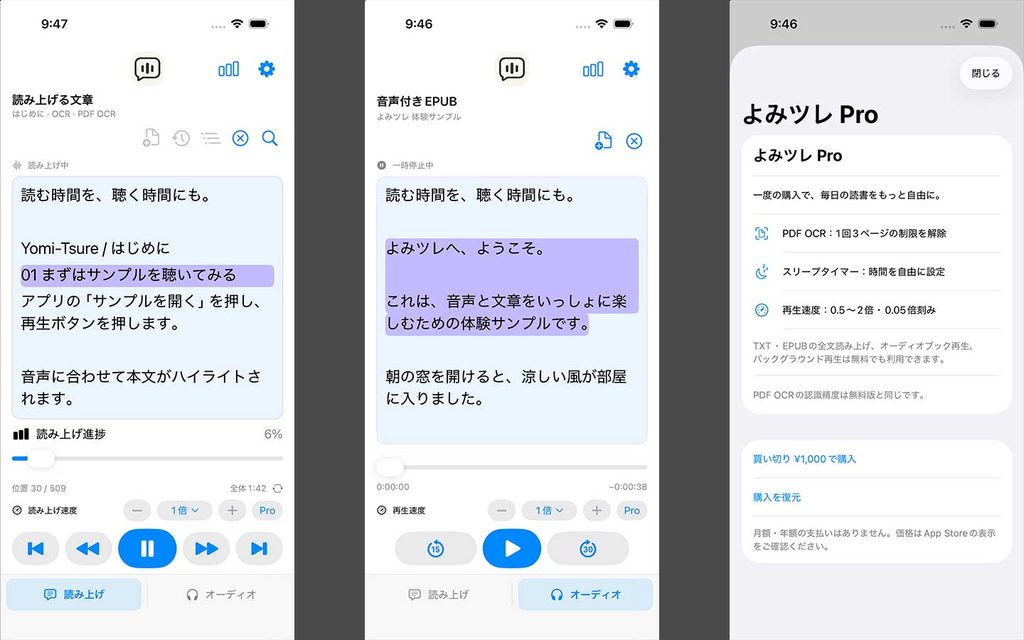
- 「オーディオ」画面に切り替わり、同梱の音声付きEPUBが開きます。再生ボタンを押して、音声と本文の連動を試してください。
- 使い方は初期画面の「はじめに」、または設定の「使い方を見る」から確認できます。説明書は文字認識を行わず、そのまま閲覧できます。
アプリの言語に応じて、日本語または英語の説明書とサンプルを用意しています。
ファイルの置き場所とサンプルの復元
「ファイル」アプリ →「このiPhone内」(iPadでは「このiPad内」)→「よみツレ」(Yomi-Tsure)に本や音声を保存できます。初回に日本語の「はじめに.pdf」「体験サンプル.epub」、または英語の「Getting Started.pdf」「Audio Sample.epub」を配置します。
「読書フォルダーを開く」から専用フォルダーを開けます。横のフォルダーメニューから、別の読書フォルダーを登録することもできます。iCloud Driveなど、ほかの場所のファイルも選択できます。
削除した説明書やサンプルは、設定の「サンプルを復元」で戻せます。通常の再起動で勝手に復活せず、復元時にも同じ名前の既存ファイルは上書きしません。言語を切り替えると、その言語のサンプルが初回だけ追加されます。既存の文書や読み込み済みの本文は翻訳・上書きされません。
文章を読み上げる
- ファイルを開くボタンから文書を選択します。
- 必要に応じて、設定で日本語・英語の声と読み上げ速度を選びます。
- 再生ボタンを押すと読み上げを開始します。本文をタップして開始位置を指定することもできます。
- 一時停止・再開や、見出し・章への移動を利用できます。読み上げ位置は保存され、履歴から再び開いた際に引き継がれます。
読み上げにはApple標準音声を使用します。文章の言語を自動判定し、日本語と英語の声を切り替えます。判定結果や声によって、読み方が意図と異なる場合があります。
PDFを読み上げる
- ファイル選択でPDFを開きます。
- 縦書き・横書きを選び、プレビューの赤枠で文字認識する範囲を調整します。ページ番号や柱を枠から外し、本文が欠けていないか確認してください。
- 対象ページを指定し、変換を実行します。変換中はアプリを前面に表示したままお待ちください。
- 完了後に「読み上げ画面で開く」を押します。生成したテキストは、履歴メニューの「PDFから生成したテキスト」から再度開いたり削除したりできます。
OCRは端末内で行います。誤認識や読み順の乱れが生じる場合があり、ルビ、複雑な段組、画質の低いページなどでは特に影響を受けます。同じ赤枠が選択ページすべてに適用されます。アプリをバックグラウンドに移すと処理を中止し、途中結果は保存しません。パスワード付きPDFは、解除済みのファイルを選び直してください。
音声ファイルを聴く
画面下の「オーディオ」を開き、「音声・EPUBを開く」から音声ファイルを選択してください。ファイルはアプリ内にコピーされます。速度変更、15秒戻る、30秒進む、再生位置の保存に対応しています。
文章の読み上げと音声ファイルの再生は同時に行いません。別の再生を開始すると、それまでの再生は位置を残して一時停止します。バックグラウンド再生とロック画面からの操作にも対応しています。
音声付きEPUBを聴く
「オーディオ」→「音声・EPUBを開く」から、メディアオーバーレイ対応の音声付きEPUBを選びます。収録された音声を再生し、その音声に対応する本文をハイライトします。本文をタップすると、対応する音声区間から再生できます。
通常のEPUBに自動で録音音声が付く機能ではありません。音声・同期情報のないEPUBは「読み上げ」画面で開き、Apple標準音声による読み上げをご利用ください。保護されたファイルや、構造・音声形式が対応していないファイルは開けない場合があります。
無料版とよみツレ Pro
無料版でも、文章の全文読み上げ、EPUBの章移動、音声ファイル・対応する音声付きEPUBの再生、声の選択、再生位置の保存、バックグラウンド再生を利用できます。
- 無料版の速度:0.75倍・1倍・1.25倍
- 無料版のスリープタイマー:15分。タイマーを使わずに再生することもできます。
- 無料版のPDF OCR:1回3ページまで。範囲を分けて繰り返し変換できます。
買い切り型の「よみツレ Pro」を購入すると、速度を0.5〜2倍の範囲で0.05倍刻みに調整でき、スリープタイマーの時間を自由に設定できます。PDF OCRは1回3ページの制限が解除されます。処理時間や処理できる分量は、端末の性能・空き容量・PDFの内容によって異なります。
Proはサブスクリプションではありません。価格はアプリ内の購入画面でご確認ください。
購入を復元する
設定からProの購入画面を開き、「購入を復元」を押してください。購入時と同じApple Accountを使用し、インターネットに接続してください。購入が承認待ちの場合は、承認後に反映されます。反映されない場合は、通信状況とApple Accountを確認して再試行してください。
読書記録とスリープタイマー
設定の「読書時間と推移」から、文章の読み上げと音声ファイルの再生に使った時間を確認できます。記録は端末内に保存され、「読書記録をすべて削除」から消去できます。スリープタイマーは、文章の読み上げと音声ファイルの再生の両方に利用できます。
よくある質問
オフラインでも使えますか?
端末内にあるファイルと利用可能な音声で、読み上げ・OCR・音声再生を行えます。クラウド上のファイルの取得、Apple標準音声の追加ダウンロード、購入情報の取得、購入・復元、外部ページの閲覧にはインターネット接続が必要になる場合があります。
アプリの表示言語を変えるには?
iPhone・iPadの「設定」→「アプリ」→「よみツレ」→「言語」で日本語または英語を選び、アプリを開き直してください。OSによって項目の位置や表示条件が異なります。表示言語を変えても、自分の文書の内容は翻訳されません。
声を追加・変更するには?
iPhone・iPadの「設定」→「アクセシビリティ」の読み上げ関連項目から、日本語または英語の声をダウンロードしてください。OSのバージョンによって項目名が異なります。ダウンロード後にアプリへ戻り、設定で声を選び直してください。
履歴の文書が開けません。
元ファイルの移動・削除や、ファイル提供サービスの状態によって開けなくなる場合があります。「ファイル」アプリでファイルを開けるか確認し、よみツレで選び直してください。クラウド上のファイルは、ダウンロードが完了しているかも確認してください。
読み上げや再生が止まります。
スリープタイマーの設定をご確認ください。通話やイヤホンの切断などによって一時停止する場合もあります。出力先と音量を確認し、再生ボタンで再開してください。
文書や読書記録は外部へ送信されますか?
読み上げ・OCR・読書記録のために、開発者のサーバーへ送信することはありません。クラウドのファイル提供サービスやAppleの購入処理などについては、プライバシーポリシーをご確認ください。
お問い合わせ
お問い合わせフォームからお送りください。お問い合わせ内容に「よみツレ / Yomi-Tsure」とご記入ください。不具合については、次の情報を添えていただくと調査に役立ちます。
- iPhone・iPadの機種、OSとアプリのバージョン
- 利用していた機能、ファイル形式、選択した声
- 問題が発生するまでの操作手順とエラーメッセージ
スクリーンショットやサンプルファイルを送る際は、個人情報・機密情報・第三者の著作物の取り扱いにご注意ください。Apple Accountのパスワードや決済情報は送付しないでください。
最終更新日:2026年10月18日
Yomi-Tsure Support
Thank you for using Yomi-Tsure, an iPhone and iPad app that supports reading through text-to-speech, PDF text recognition, and audio file or audio EPUB playback. This page explains basic usage, frequently asked questions, and how to contact support.
Supported Files
- Documents: TXT, Markdown (MD), HTML, EPUB, and DOCX
- PDFs: converted to text using basic OCR for reading aloud
- Audio: MP3, M4A, WAV, and other audio files playable on your device
- Audio EPUBs: synchronized audio playback and text highlighting for files with media overlays
Documents are opened for reading only. The App does not edit source documents or export text-to-speech audio files. Some files may not load correctly because of their structure, protection, or encoding. See the App Store compatibility section for the required OS version.
Getting Started
- Tap Open Sample on the initial Read Aloud screen.
- The App switches to Audio and opens a bundled audio EPUB. Press Play to try synchronized text and audio.
- Open Getting Started on the initial screen, or Settings → View Getting Started, to read the guide directly without OCR.
Japanese and English guides and samples are available according to the App’s language.
Files and Restoring Samples
Save books and audio in Files → On My iPhone (or On My iPad) → Yomi-Tsure. On first use, the App installs Getting Started.pdf and Audio Sample.epub in English, or はじめに.pdf and 体験サンプル.epub in Japanese.
Use Open Reading Folder to access this folder. The folder menu beside it lets you register a different reading folder. You can also select files from other locations, including iCloud Drive.
Use Settings → Restore Samples to recover deleted guides or samples. They are not recreated on normal relaunch, and restoration never overwrites existing files with the same names. Switching languages installs that language’s samples once, while preserving existing documents and the text you have already opened.
Listen to Documents
- Use the open-file button to select a document.
- Choose Japanese and English voices in Settings and adjust the reading speed as needed.
- Press Play to start reading. You can also tap the text to choose a starting position.
- Pause, resume, or navigate to headings and chapters. Reading positions are saved and restored when you reopen a document from history.
The App uses Apple’s system voices. It automatically detects the text’s language and switches between Japanese and English voices. Language detection and pronunciation may not always match your expectations.
Listen to PDFs
- Select a PDF using the file picker.
- Choose vertical or horizontal writing and adjust the red recognition area in the preview. Exclude page numbers and running headers while keeping all body text inside the frame.
- Select the pages and start conversion. Keep the App in the foreground until processing finishes.
- Open the result in the reading screen. You can reopen or delete generated text from the PDF-generated text list in the history menu.
OCR runs on your device. Recognition and reading order may be inaccurate, especially with ruby annotations, complex columns, or low-quality scans. The same crop area applies to all selected pages. Moving the App to the background cancels processing without saving partial results. For password-protected PDFs, select an unlocked copy.
Listen to Audio Files
Open the Audio tab and select a file using Open Audio or EPUB. The App copies it into local app storage. Controls include speed adjustment, skipping back 15 seconds, skipping forward 30 seconds, and saving playback positions.
Document speech and audio files do not play simultaneously. Starting one pauses the other while preserving its position. Background playback and lock-screen controls are supported.
Listen to Audio EPUBs
In Audio, select Open Audio or EPUB and choose an EPUB with media overlays. The App plays its bundled recording and highlights the corresponding text. Tap a passage to play from the associated audio segment.
This feature does not automatically add recorded narration to regular EPUBs. Open EPUBs without audio synchronization data in Read Aloud to listen using Apple’s system voices. Protected files and unsupported EPUB structures or audio formats may not open.
Free Version and Yomi-Tsure Pro
The free version includes full-document reading, EPUB chapter navigation, audio file and compatible audio EPUB playback, voice selection, saved playback positions, and background playback.
- Free playback speeds: 0.75×, 1×, and 1.25×
- Free sleep timer: 15 minutes. You can also listen without a timer.
- Free PDF OCR: up to 3 pages per conversion. You can repeat conversion with different page ranges.
A one-time Yomi-Tsure Pro purchase unlocks speed adjustment from 0.5× to 2× in 0.05× increments, a customizable sleep timer, and removal of the 3-page-per-conversion OCR limit. Processing time and practical document limits depend on your device, available storage, and PDF content.
Pro is not a subscription. See the in-app purchase screen for the current price.
Restore Purchases
Open the Pro purchase screen from Settings and select Restore Purchases. Use the same Apple Account as the original purchase and connect to the internet. Pending purchases take effect after approval. If Pro is not restored, check your connection and Apple Account, then try again.
Reading Activity and Sleep Timer
Open the reading-time view in Settings to see time spent listening to documents and audio files. Records are stored locally and can be cleared using the delete-all-reading-activity option. The sleep timer works with both document speech and audio playback.
Frequently Asked Questions
Can I use the App offline?
Reading, OCR, and audio playback work with locally available files and voices. An internet connection may be needed to retrieve cloud files, download system voices, obtain product information, make or restore purchases, or open external pages.
How do I change the App’s language?
On your iPhone or iPad, open Settings → Apps → Yomi-Tsure → Language, choose English or Japanese, and reopen the App. The location and availability of this setting vary by OS version. Changing the interface language does not translate your own documents.
How do I add or change voices?
Download Japanese or English voices from the speech-related options under Accessibility in your iPhone or iPad settings. Menu names vary by OS version. Return to the App and select the downloaded voice in Settings.
A document in history no longer opens.
The source file may have moved or been deleted, or its file provider may be unavailable. Check that it opens in the Files app, then select it again in Yomi-Tsure. For cloud files, also check that downloading has finished.
Reading or playback stops.
Check the sleep timer. Calls and disconnected headphones can also pause playback. Check the audio output and volume, then press Play to resume.
Are documents or reading records uploaded?
The App does not send them to the developer’s servers for speech, OCR, or reading activity. See the Privacy Policy for information about file providers, Apple purchases, and other external services.
Contact Support
Use our contact form and include “Yomi-Tsure” in your message. For technical issues, please provide:
- Your iPhone or iPad model, OS version, and app version
- The feature, file format, and voice you were using
- Steps to reproduce the issue and any error message
Before sending screenshots or sample files, check for personal or confidential information and respect third-party copyrights. Do not send Apple Account passwords or payment details.
Last updated: October 18, 2026