
よみあげ – Audiobook maker サポート
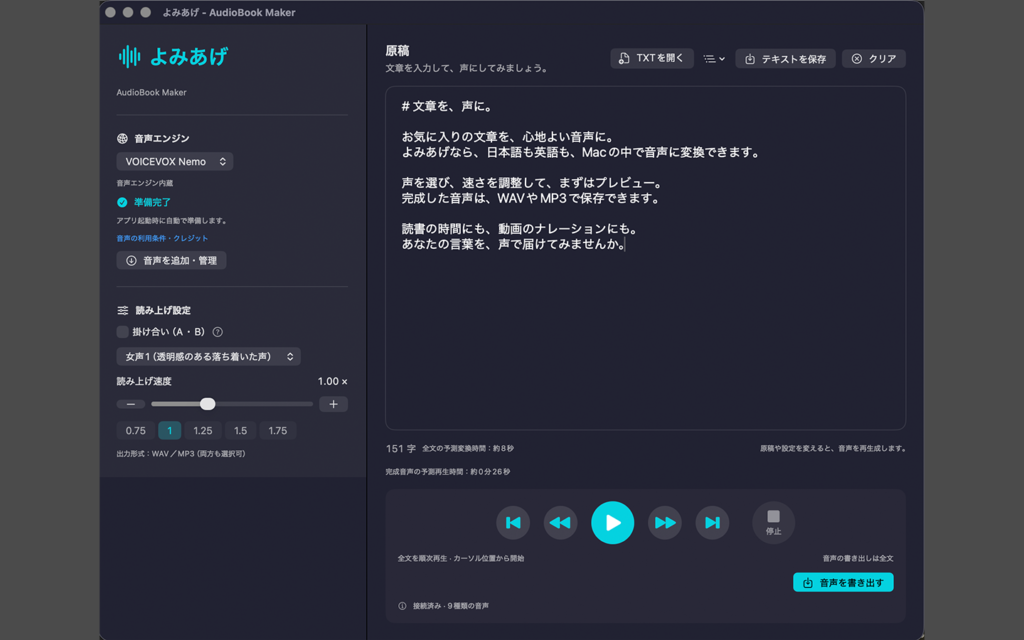
よみあげ – Audiobook makerをご利用いただきありがとうございます。このページでは、基本的な使い方、よくある質問、お問い合わせ方法をご案内します。
動作環境
- macOS 26.0以降
- Apple Silicon搭載Mac
- 日本語・英語の表示に対応
- 日本語・英語の音声生成をMac内で処理
同梱済み・取得済みの音声はオフラインで利用できます。追加音声のダウンロード、購入情報の取得、購入・復元にはインターネット接続が必要になる場合があります。
基本的な使い方
- 原稿欄に文章を入力するか、「TXTを開く」でテキストファイルを読み込みます。
- 左側で音声エンジンと音声を選びます。日本語は「VOICEVOX Nemo」または「VOICEVOX」、英語は「Kokoro(英語)」を使用します。
- 読み上げ速度を0.50〜2.00倍の範囲で調整します。
- 原稿にカーソルを置いて▶を押すと、その位置からプレビューを再生します。カーソルが原稿の末尾にある場合は、先頭から再生します。⏸で一時停止し、自動停止する前なら▶で再開できます。停止ボタンは再生とプレビュー生成を停止します。
- 「音声を書き出す」でWAV・MP3・両方から形式を選び、ファイル名と保存先を指定します。
「テキストを保存」で原稿をUTF-8のTXT形式で保存できます。読み込みはUTF-8・UTF-16・Shift JISに対応します。原稿の自動保存機能はありません。必要な原稿は終了前に保存してください。
一時停止中も、再生位置から約30秒先まで音声の準備を続けます。その分の準備ができると自動で停止し、原稿編集や他の操作が再び使えるようになります。短い原稿は末尾まで準備できた時点で停止します。自動停止前に再生を再開すると、音声の準備を続けます。自動停止後は、原稿のカーソル位置から再びプレビューを開始できます。
無料版とフル機能
無料版では音声の先頭3分までを生成・保存できます。完成音声が3分以内であれば全文を書き出せます。原稿編集、テキスト保存、全文のプレビューは購入せずに利用できます。
買い切り型の「フル機能」を購入すると、3分を超える全文を書き出せます。サブスクリプションではありません。価格はアプリ内の購入画面でご確認ください。
書き出しはプレビューの開始位置にかかわらず原稿の先頭から行います。「両方」を選んだ場合は、ファイル名と保存先を一度だけ指定し、同じ名前のWAVとMP3を保存します。
購入を復元する
アプリメニューの「設定…」を開き、「購入を復元」を押してください。購入時と同じApple Accountでサインインしてください。反映されない場合は、通信状況とApple Accountを確認して再試行してください。
音声を追加・管理する
音声エンジンで「VOICEVOX」を選ぶと、「音声を追加・管理」ボタンが表示されます。追加音声はこのボタンからダウンロードできます。同じモデルを使う音声・スタイルは一緒に追加・削除します。同梱モデルは削除できません。取得したモデルは削除後も再ダウンロードできます。
ずんだもん・四国めたんの基本4スタイルと、同じモデルに含まれる春日部つむぎ・雨晴はうは追加ダウンロードなしで利用できます。追加音声をダウンロードする前に、画面にある利用条件をご確認ください。
掛け合い(A・B)
「掛け合い(A・B)」をオンにしてAとBの音声を選び、本文の各行に話者ラベルを付けます。
A:おはようございます。
B:こんにちは。
AB:二人で同時に読み上げます。
コロンは「:」「:」のどちらも使えます。空行と見出し以外の各行にラベルと本文が必要です。ABはAとBの同時発話です。「発言の間」で発言間の無音を0.0〜1.5秒に設定できます。
見出し・移動・時間の目安
「# 第1章」のように、行頭に#〜####と空白を置くと見出しになります。「TXTを開く」の右にある目次アイコンから移動できます。見出しの#は読み上げません。掛け合いでは見出しに話者ラベルを付けず、「見出しの話者」でAまたはBを選びます。
再生位置は紫色で表示されます。手動で別の場所へスクロールした場合は、紫のボタンで読み上げ位置へ戻れます。原稿の先頭・末尾、前の文・次の文へ移動するボタンも利用できます。
表示される変換時間と音声の再生時間は目安です。無料版でも全文についての目安を表示します。未計測の変換時間は生成実績がたまると更新され、掛け合いの変換時間は書き出し中に計算します。長い原稿は章ごとに分けると処理を管理しやすくなります。
音声の利用条件・クレジット
生成した音声を公開・配布する場合は、使用したエンジン・音声の利用条件をご確認ください。アプリの左側にある「音声の利用条件・クレジット」と、「ヘルプ」メニューの「同梱ライセンス…」から確認できます。フル機能の購入によって第三者の利用条件が変更されることはありません。
- VOICEVOX Nemo:公式利用規約に従い、「VOICEVOX Nemo」のクレジットを記載してください。
- ずんだもん・四国めたん:使用した音声に応じて「VOICEVOX:ずんだもん」「VOICEVOX:四国めたん」を記載し、音源利用規約をご確認ください。
- その他のVOICEVOX音声:各音声の利用条件と指定クレジットをご確認ください。
- Kokoro:モデル情報・ライセンスをご確認ください。
よくある質問
原稿や音声は外部サーバーに送信されますか?
音声生成のために送信されることはありません。VOICEVOXは同じMac内の内蔵エンジンと通信し、KokoroもMac内で処理します。追加音声の取得やAppleの購入処理では外部通信を行います。
エンジンが準備完了になりません
Apple Silicon搭載Macか確認し、準備が終わるまでお待ちください。失敗した場合は「エンジンを再起動」を押してください。改善しない場合はアプリを終了して再起動してください。
書き出しに時間がかかります
原稿の長さ、音声、読み上げ速度、Macの性能によって処理時間が変わります。完了するまでアプリを起動したままにしてください。「キャンセル」で処理を中止できます。長文の音声生成には一時ファイル用の空き容量も必要です。
英語の固有名詞がうまく読まれません
Kokoroの辞書にない固有名詞は綴り読みになる場合があります。英語以外の読み上げには日本語エンジンをお使いください。
英語原稿の事前確認で修正を求められます
Kokoroでは、音声生成前に対象の原稿の読みを事前確認します。読めない語がある場合は、行番号・該当文・語を表示し、最初の問題箇所へカーソルを移します。原稿を修正して再試行してください。書き出し時は原稿全体、プレビュー時はカーソル位置以降を確認します。この確認は読み変換の問題を対象としており、生成中のすべてのエラーを防ぐものではありません。
お問い合わせ
不具合については、macOSとアプリのバージョン、Macのチップ、選択したエンジン・音声、操作手順、エラーメッセージをご記載ください。スクリーンショットやログを添付する場合は、原稿・個人情報・機密情報が含まれていないか確認してください。
お問い合わせフォームからお送りください。お問い合わせ内容に「よみあげ / Yomi-Age」とご記入ください。
Yomi-Age – Audiobook maker Support
Thank you for using Yomi-Age. This page explains basic usage, troubleshooting, and how to contact support.
System Requirements
- macOS 26.0 or later
- A Mac with Apple Silicon
- Japanese and English interface
- Japanese and English speech generation performed locally on your Mac
Bundled and downloaded voices work offline. An internet connection may be needed for voice downloads, product information, purchases, and restoration.
Basic Usage
- Enter your script or load a text file with Open TXT.
- Choose an engine and voice. Use VOICEVOX Nemo or VOICEVOX for Japanese, and Kokoro (English) for English.
- Adjust reading speed from 0.50× to 2.00×.
- Place the cursor in the script and press ▶ to preview from that point. If the cursor is at the end, playback starts from the beginning. Use ⏸ to pause and ▶ to resume before playback automatically stops. Stop ends playback and preview generation.
- Click Export Audio, select WAV, MP3, or both, and choose file names and destinations.
Save Text saves your script as a UTF-8 TXT file. Open TXT supports UTF-8, UTF-16, and Shift JIS. Scripts are not automatically saved; save any script you need before quitting.
While paused, the app continues preparing roughly 30 seconds of audio ahead of the playback position. It then stops automatically so you can edit the script and use other controls. Short scripts stop once the end is prepared. Resuming before the automatic stop continues audio preparation. After the automatic stop, start a new preview from the script cursor position.
Free Version and Full Version
The free version generates and saves up to the first 3 minutes of audio. Scripts producing audio of 3 minutes or less can be exported in full. Script editing, text saving, and full-script previews do not require a purchase.
A one-time Full Version purchase unlocks full-length exports longer than 3 minutes. It is not a subscription. See the purchase screen for the current price.
Exports start at the beginning of the script regardless of the preview start position. When exporting both formats, enter a name and destination once to save WAV and MP3 files with the same base name.
Restore Purchases
Open Settings from the app menu and click Restore Purchases. Sign in with the same Apple Account used for the original purchase. If access is not restored, check your connection and account, then try again.
Manage Voices
Select VOICEVOX to show the Manage Voices button. Use this button to download additional voices. Voices and styles sharing a model are added or removed together. The bundled model cannot be removed. Downloaded models can be removed and downloaded again.
The four basic styles of Zundamon and Shikoku Metan, plus Kasukabe Tsumugi and Amehare Hau in the same model, are available without an additional download. Review each voice’s terms before downloading.
Dialogue (A/B)
Enable Dialogue (A/B), choose voices for A and B, and label each body-text line:
A: Good morning.
B: Hello.
AB: We read this line together.
Both : and : are supported. Each line except blank lines and headings requires a label and text. AB speaks with both voices simultaneously. Pause Between Lines sets 0.0–1.5 seconds of silence between turns.
Headings, Navigation, and Estimates
Start a heading with #–#### followed by a space, such as “# Chapter 1”. Use the table of contents beside Open TXT to navigate. The # marks are not spoken. In dialogue mode, leave headings unlabeled and choose A or B with Heading Speaker.
The reading position is highlighted in purple. If you scroll elsewhere, click the purple button to return. Navigation buttons move to the beginning, end, previous sentence, or next sentence.
Generation time and audio duration are estimates for the entire script, including in the free version. Generation estimates update as measurement data becomes available; dialogue generation time is calculated during export. Split long scripts into chapters to make processing easier to manage.
Voice Terms and Credits
Before publishing or distributing audio, review Voice Terms & Credits in the sidebar and Bundled Licenses in the Help menu. Purchasing the Full Version does not change third-party license conditions.
- VOICEVOX Nemo: follow the official terms and credit “VOICEVOX Nemo”.
- Zundamon and Shikoku Metan: credit “VOICEVOX:ずんだもん” or “VOICEVOX:四国めたん” as applicable, and follow the voice terms.
- Other VOICEVOX voices: check each voice’s terms and required credits.
- Kokoro: see the model information and license.
Frequently Asked Questions
Are scripts or generated audio uploaded?
No upload is required for speech generation. VOICEVOX communicates with its bundled engine on the same Mac, and Kokoro runs locally. Voice downloads and Apple purchase processing use external connections.
The engine does not become ready.
Check that your Mac has Apple Silicon and allow initialization to finish. If setup fails, click Restart Engine. If the issue persists, quit and reopen the app.
Export takes a long time.
Processing time depends on script length, voice, speed, and your Mac. Keep the app open until export finishes. Cancel stops the operation. Long exports also need free disk space for temporary audio files.
English names are mispronounced.
Names missing from Kokoro’s dictionary may be spelled out. Use a Japanese engine for Japanese text.
The English preflight check asks me to edit the script.
Kokoro checks text-to-phoneme conversion before generating audio. If a passage cannot be read, the app shows its line number, text, and the problem word, and moves the cursor to the first affected passage. Edit the script and try again. Exports check the full script; previews check from the cursor onward. This check detects reading-conversion problems and does not prevent every possible audio-generation error.
Contact Support
Include your macOS and app versions, Mac chip, selected engine and voice, steps to reproduce the issue, and error message. Before attaching screenshots or logs, check for script content, personal information, or confidential information.
Use our contact form and include “Yomi-Age” in your message.