
PDF見開き分割 サポート
PDF見開き分割をご利用いただきありがとうございます。
このページでは、基本的な使い方、よくある質問、お問い合わせ方法をご案内します。
動作環境
- macOS 26.0以降
- 日本語・英語対応
- PDFはMac内でローカル処理され、クラウドへ送信されません
基本的な使い方
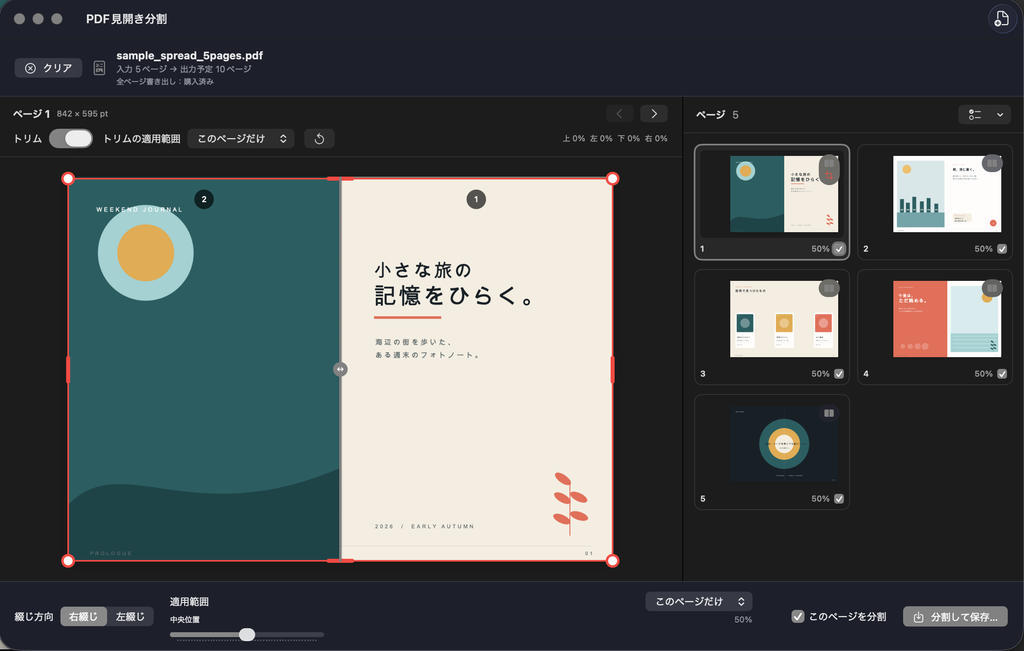
- 「PDFを開く…」を押すか、PDFをウインドウへドラッグ&ドロップします。
- 分割が不要な表紙や縦向きページは、サムネールの「分割」をオフにします。
- 青い分割線をドラッグして、分割位置を調整します。
- 必要に応じて「トリム」をオンにし、赤い枠の四辺または四隅をドラッグします。
- 右綴じ/左綴じを選択します。
- 「分割して保存…」を押し、出力先を選択します。
無料版と全ページ書き出し
無料版でも、分割位置、トリム、ページごとの設定など、すべての編集機能をご利用いただけます。無料版のPDF書き出しは、先頭から最大10出力ページまでです。透かしや画質低下、回数制限はありません。
買い切り型の「全ページ書き出し」を購入すると、ページ数の制限なく書き出せます。サブスクリプションではありません。
購入を復元する
アプリメニューから「設定…」を開き、「購入を復元」を押してください。購入時と同じApple Accountでサインインしている必要があります。
編集状態の保存と削除
分割位置やトリム範囲はMac内に自動保存され、同じPDFを再度開くと復元されます。保存情報は「設定…」の「保存した編集情報」から個別または一括で削除できます。
よくある質問
PDFは外部サーバーへ送信されますか?
送信されません。PDFの読み込み、分割、トリム、書き出しはすべてMac内で行われます。
元のPDFは変更されますか?
変更されません。分割後のPDFは、利用者が指定した場所へ別ファイルとして保存されます。
表紙や縦向きページを残せますか?
はい。対象ページの「分割」をオフにすると、1ページのまま出力されます。トリムだけを適用することもできます。
無料版で画質は低下しますか?
低下しません。無料版も購入版と同じ品質で書き出します。
パスワード付きPDFを開けません
パスワードで保護されたPDFには対応していません。PDFの所有者の許可を得たうえで、保護を解除したコピーをご利用ください。
お問い合わせ
不具合についてお問い合わせいただく際は、次の情報をご記載ください。
- macOSのバージョン
- PDF見開き分割のバージョン
- 発生した操作とエラーメッセージ
- 可能であれば画面のスクリーンショット
PDFに個人情報や機密情報が含まれる場合は、PDFファイル自体を送付しないでください。
不具合やご質問は、お問い合わせフォームからお送りください。お問い合わせ内容に「PDF見開き分割」とご記入ください。
PDF Spread Splitter Support
Thank you for using PDF Spread Splitter. This page covers basic usage, frequently asked questions, and how to contact support.
System Requirements
- macOS 26.0 or later
- Japanese and English interface
- PDFs are processed locally on your Mac and are never uploaded to the cloud
Basic Usage
- Click Open PDF, or drag and drop a PDF onto the window.
- Turn Split off for covers, portrait pages, or other pages that should remain intact.
- Drag the blue split line to adjust the split position.
- If needed, turn on Trim and drag the edges or corners of the red frame.
- Choose Right Binding or Left Binding.
- Click Split and Save, then choose a destination.
Free and Full PDF Export
The free version includes all editing features, including split-position adjustment, trimming, and per-page settings. It exports up to the first 10 output pages with no watermark, quality reduction, or export-count limit.
A one-time purchase of Full PDF Export removes the page limit. This is not a subscription.
Restore a Purchase
Open Settings from the app menu and click Restore Purchases. You need to be signed in with the same Apple Account used for the original purchase.
Saved Edit Data
Split positions and trim areas are saved automatically on your Mac and restored when you reopen the same PDF. You can delete individual or all saved edit data from Saved Edit Data in Settings.
Frequently Asked Questions
Are my PDFs uploaded to an external server?
No. Opening, splitting, trimming, and exporting are performed entirely on your Mac.
Does the App modify my original PDF?
No. The split PDF is saved as a separate file at a location you choose.
Can I keep covers or portrait pages intact?
Yes. Turn Split off for a page to export it as a single page. You can also apply trimming without splitting it.
Does the free version reduce quality?
No. Free and purchased exports use the same output quality.
I cannot open a password-protected PDF.
Password-protected PDFs are not supported. With the owner’s permission, use a copy with protection removed.
Contact Support
When reporting an issue, please include:
- Your macOS version
- Your PDF Spread Splitter version
- The steps that caused the issue and any error message
- A screenshot, if possible
If your PDF contains personal or confidential information, please do not attach the PDF itself.
For questions or technical issues, please use our contact form. Include “PDF Spread Splitter” in your message.